How to import a bank CSV into Spendcal
A practical guide to importing bank statement CSV files into Spendcal and reviewing daily transactions without manual entry.
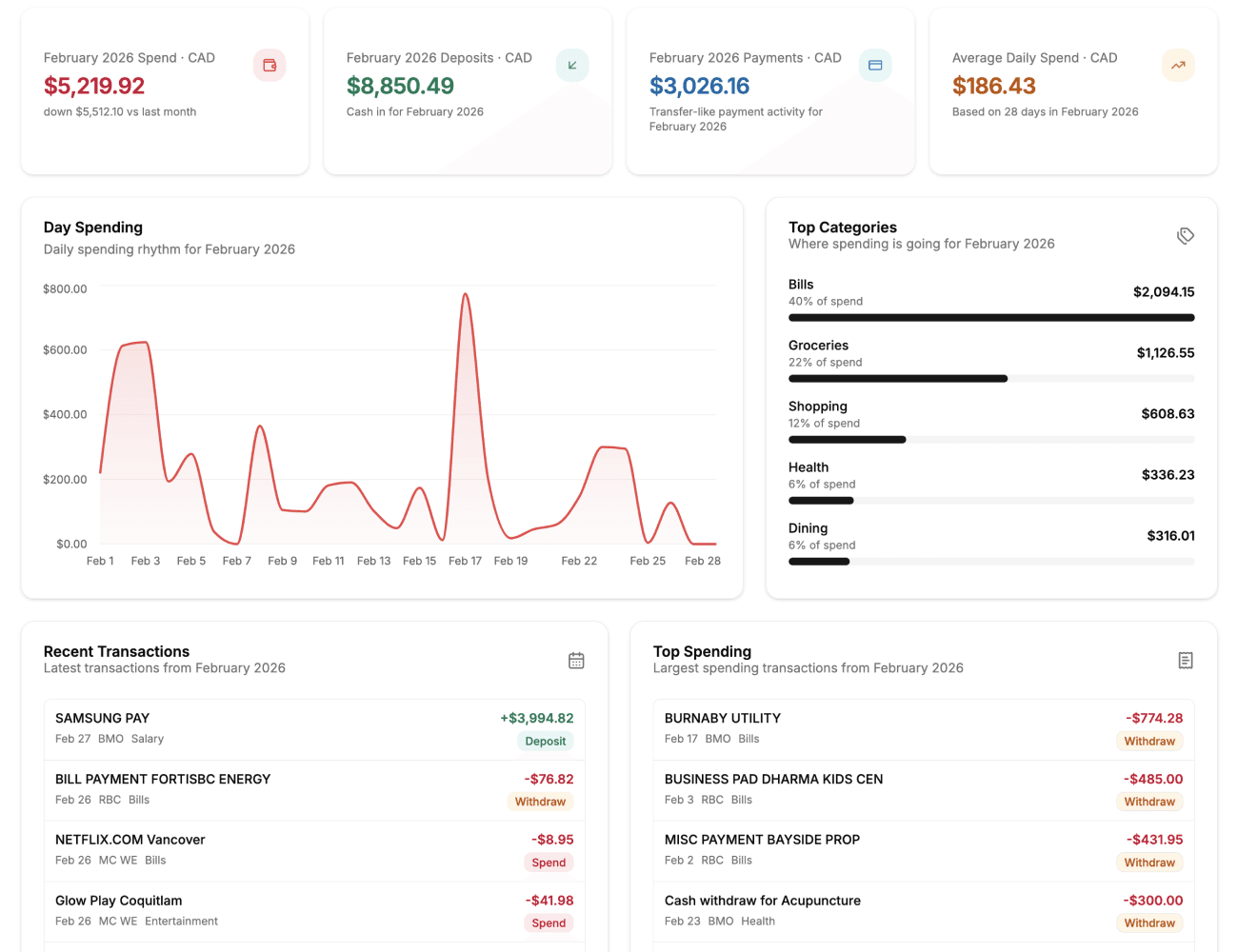
Start with one account
Choose the account that matches the statement before you upload the file. This keeps your spending calendar accurate and avoids mixing different transaction flows.
If you have multiple cards or bank accounts, import them one at a time so each account keeps a clean history.
Review parsed rows after import
After upload, Spendcal records the file in import history and adds transactions to your calendar view. Check that the row count looks reasonable and that duplicates were skipped when expected.
If a file contains payments, deposits, spending, or withdrawals, verify that those transactions appear on the correct days.
Use the day log for spot checks
Open the day view from the calendar to inspect descriptions, account labels, categories, and amounts for a single date. This is the fastest way to confirm that a fresh import looks correct.